Compatibility

Simulator export guide

Turn a Foresight session into one Divot Card.

Use a shot-level Foresight / FSX / Bushnell export so DivotData can detect the pattern, show the evidence, assign one practice block, and tell you how to retest the same setup.

Current beta status

Foresight / FSX / Bushnell

Beta

Best upload

CSV, XLSX, Shots.csv

File types

.CSV, .XLSX, .TXT

Confidence boost

Club, carry, offline, launch, spin

Mechanical proof

Needs impact data or coach review

DivotData reads shot rows, not summary screenshots. Missing optional metrics lower confidence instead of breaking the flow.

What to upload

Shot-level data works better than summary reports.

Use FSX Export from an analysis screen, or enable Write Shots CSV for live shot-row capture.

Compatibility note: Shot rows are preferred over PDF-style reports.

Who this is for

Home simulator golfers who want a practical answer to what changed today and what to practice next.

What improves confidence

Clear club labels, one row per shot, carry or total distance, offline/deviation, launch, spin, shot order, and a matched retest.

Export steps

Prepare the file before you upload.

Use the cleanest export path available. If the source only gives a table, copied rows can still be useful.

  1. 1Open FSX 2020, FSX Play, or FSX Pro and load the completed range or practice session.
  2. 2For a manual export, open an analysis screen and click Export in the top-right corner.
  3. 3Choose CSV, XLSX, or spreadsheet data instead of PDF.
  4. 4For automatic shot-row capture in FSX 2020, click the dashboard menu in the top-right, open Settings, then On-Screen Data.
  5. 5Check Write Shots CSV, finish the set, then copy Shots.csv from C:\Program Files (x86)\Foresight Sports Experience\System before returning to the main menu.
  6. 6Return to DivotData and use the upload box at the top of the page.
  7. 7Drop the exported file on the upload box or click Choose files. If your source only shows a table, paste the copied rows into Paste Table Text.

Click-by-click walkthrough

Export FSX analysis data or copy Shots.csv.

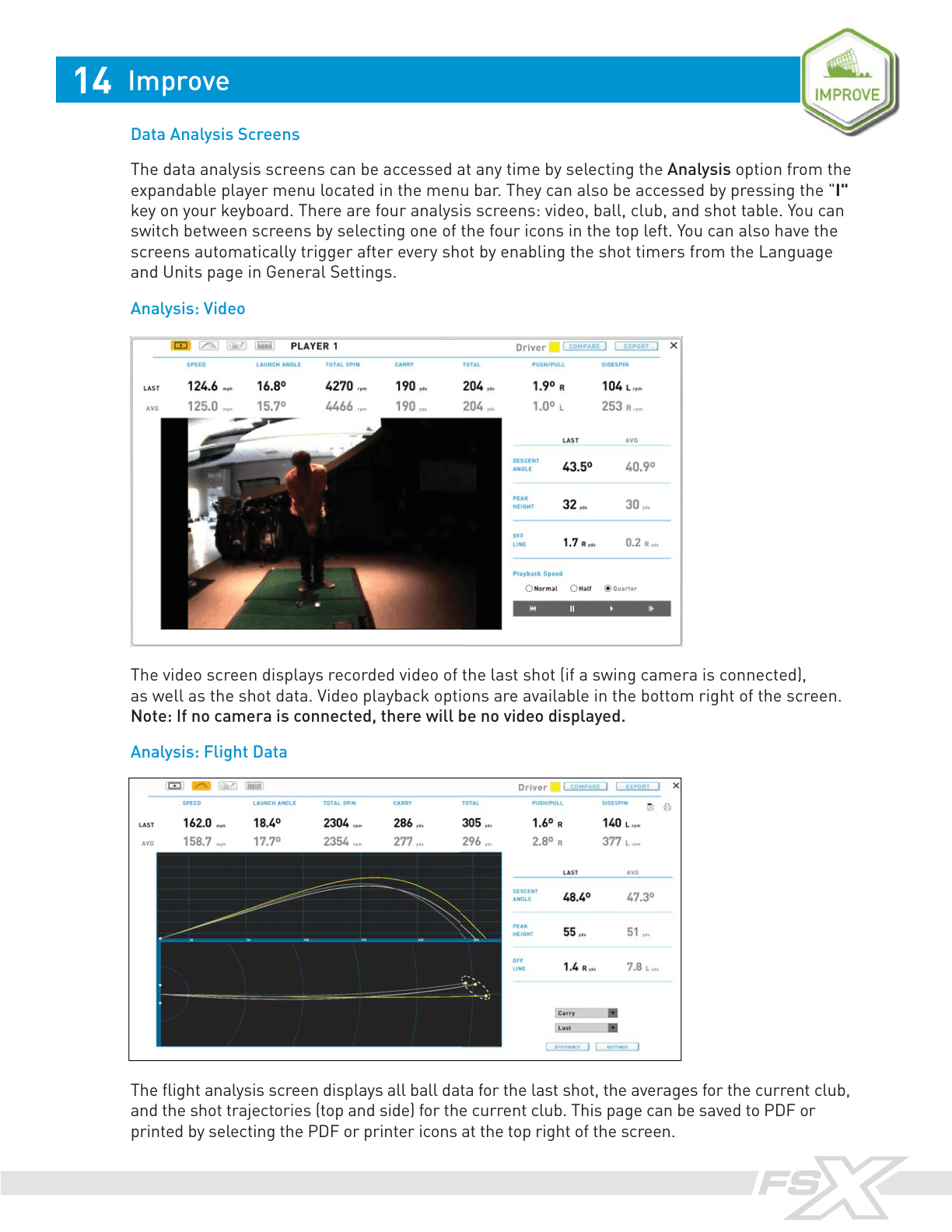
Foresight's official FSX manual documents both the analysis-screen Export option and the Write Shots CSV setting. The screenshots below are rendered from the official manual pages that contain those workflows.

  1. 1Official manual: Analysis

    Open Data Analysis

    Open the completed FSX session and choose Analysis for the current player or practice set.

    Note: The official manual shows video, ball, club, and shot-table analysis screens. DivotData works best from the shot table or export data path.

    Rendered official FSX manual page showing data analysis screens.
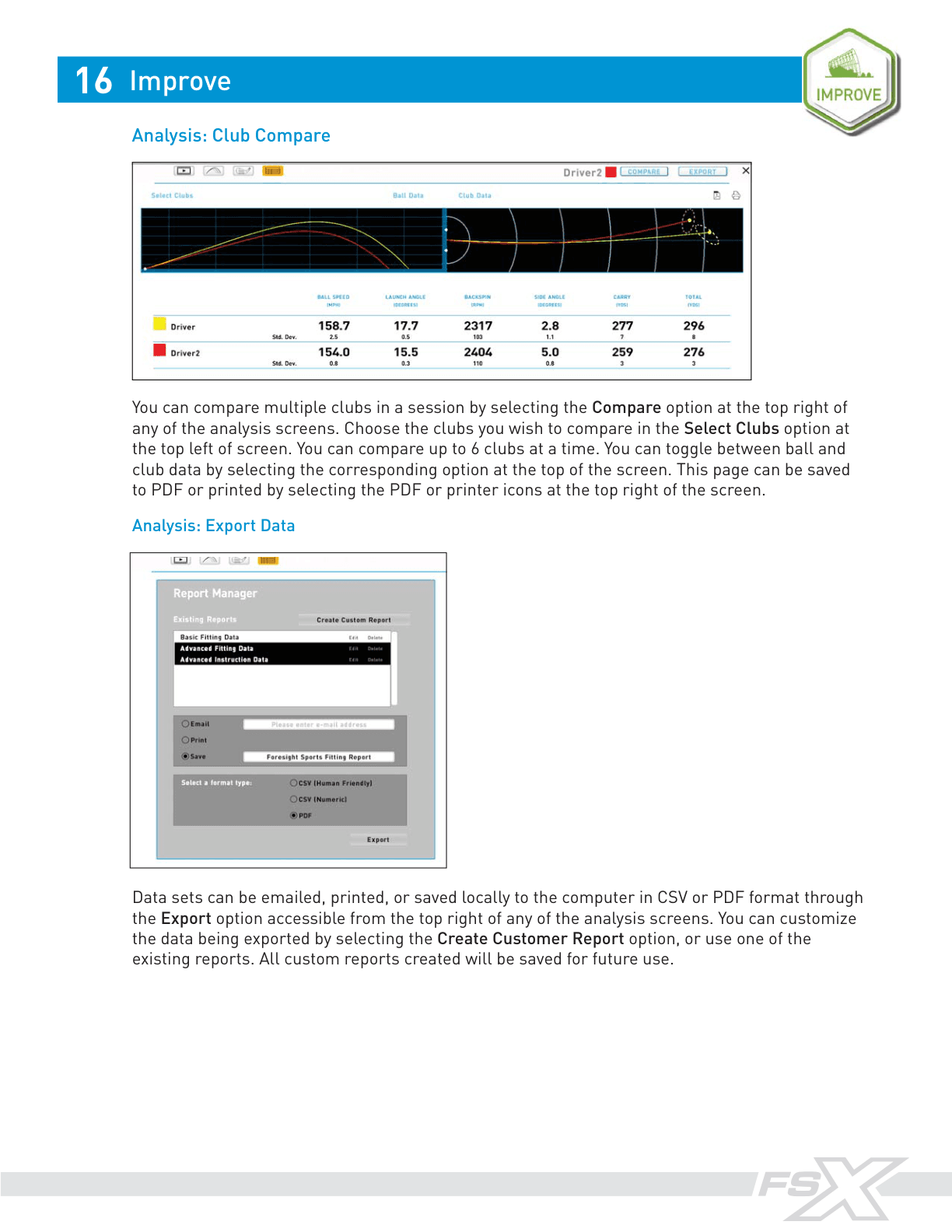
  2. 2Official manual: Export Data

    Use Export Data

    From any analysis screen, click Export in the top-right and choose a CSV or spreadsheet-style export.

    Note: Choose CSV or XLSX rather than PDF because DivotData reads shot rows, not report pictures.

    Rendered official FSX manual page explaining Export Data and CSV/PDF options.
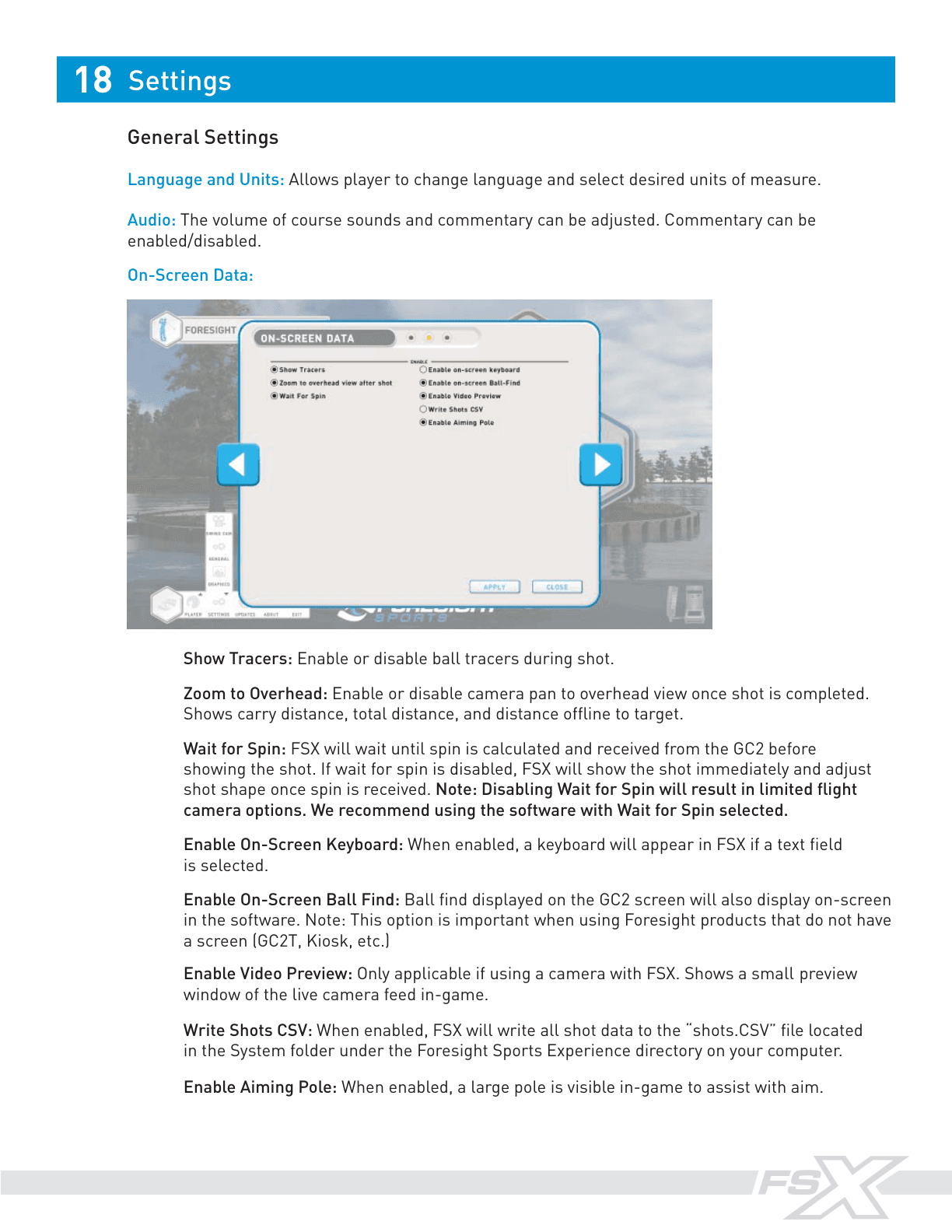
  3. 3Official manual: Write Shots CSV

    Optional: enable Write Shots CSV

    For live shot-row capture, open Settings, then On-Screen Data, and enable Write Shots CSV.

    Note: The manual states FSX writes shots.CSV to the FSX system folder when this setting is enabled. Copy it before leaving the session if your workflow clears the file.

    Rendered official FSX manual page showing On-Screen Data and Write Shots CSV setting.
  4. 4Next click: DivotData upload box

    Upload to DivotData

    Return to DivotData, keep the source set to Foresight, then drop the CSV, XLSX file, or Shots.csv copy.

    Note: Club delivery metrics depend on device model, stickers/markers, and subscription level. Missing metrics lower confidence instead of blocking the card.

    No fixed screenshot

    This screen can vary by device, operating system, or account state. Follow the note and choose the option that produces a CSV or other shot-level table file.

Official source: FSX 2020 manual. Labels and DivotData notes are written for the upload-to-card workflow.

Expected metrics

Metrics DivotData looks for in Foresight files.

ClubBall speedCarryTotal distanceOffline or deviationLaunch angleSpin rateSide spinSmash factor

Data quality tips

  • Export shot-level rows instead of summary tiles.
  • Copy the live Shots.csv file before leaving the session.
  • Use club labels so the bag page stays accurate.

What this cannot prove alone

  • Club delivery metrics depend on device model, club stickers/markers, and subscription level.
  • FSX 2020 Shots.csv clears after the session is ended and the user returns to the main menu.
  • Launch-monitor data can detect patterns, but exact swing mechanics still need richer context, strike data, or coach review.

Sample proof

The upload is only useful if it becomes a focused card.

A Divot Card should show pattern detected, evidence, confidence, likely focus, what not to chase, the practice block, and a matched retest protocol.

Sample Divot Card

Low-right / low-fade pattern

Open

Today's focus

18-minute 8-Iron Reset

A short block that narrows start line first, then checks face control, then checks strike/low point.

18 min
Club8-iron
PatternLow-right fade
ConfidenceMedium · 64/100

Start with

Start-line gate

Start the ball through a narrow target window before judging curve.

Why this card

Data quality

82/100

good beta file

Sample

20 shots

Matched stock 8-irons

Coach-style note

The ball-flight pattern is clear enough to practice, but the exact mechanical cause should stay a hypothesis until a coach or impact evidence validates it.

Get your first card free

Demo card. Launch-monitor data can identify patterns and confidence levels, but it does not prove exact swing mechanics by itself.