Compatibility

Simulator export guide

Turn a ProTee session into one Divot Card.

Use a shot-level ProTee VX export so DivotData can detect the pattern, show the evidence, assign one practice block, and tell you how to retest the same setup.

Current beta status

ProTee VX

Needs validation

Best upload

GSPro or connected simulator CSV

File types

.CSV, .XLSX, .TXT

Confidence boost

Club, carry, offline, launch, spin

Mechanical proof

Needs impact data or coach review

DivotData reads shot rows, not summary screenshots. Missing optional metrics lower confidence instead of breaking the flow.

What to upload

Shot-level data works better than summary reports.

Route ProTee VX sessions through GSPro when you need a CSV/Excel-style shot history export.

Compatibility note: Use connected simulator shot rows until native export is stable.

Who this is for

Home simulator golfers who want a practical answer to what changed today and what to practice next.

What improves confidence

Clear club labels, one row per shot, carry or total distance, offline/deviation, launch, spin, shot order, and a matched retest.

Export steps

Prepare the file before you upload.

Use the cleanest export path available. If the source only gives a table, copied rows can still be useful.

  1. 1Connect ProTee VX to GSPro or another simulator that can export shot rows.
  2. 2In GSPro, open Practice, then Practice Range or On-Course Practice.
  3. 3Hit the shots you want to keep.
  4. 4Click the clipboard icon in the top-left area of the screen.
  5. 5Click Export CSV and save the file from the desktop.
  6. 6Return to DivotData and use the upload box at the top of the page.
  7. 7Drop the exported file on the upload box or click Choose files. If your source only shows a table, paste the copied rows into Paste Table Text.

Click-by-click walkthrough

Connect ProTee VX, then export rows through GSPro.

ProTee publishes official setup screenshots for ProTee Labs, and its support article says ProTee Labs does not offer API/local Excel export. Use GSPro's official CSV export path for DivotData-ready rows.

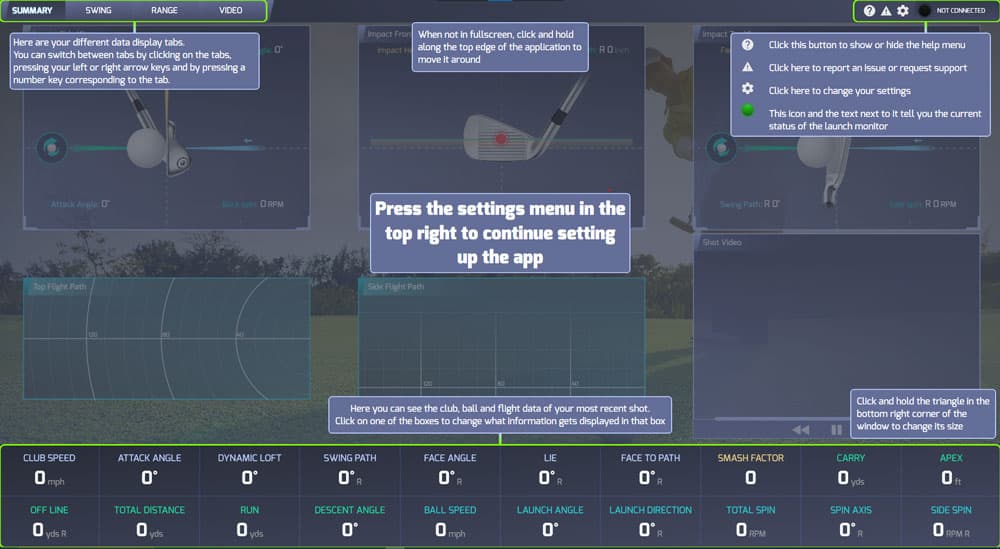
  1. 1Official setup screenshot

    Verify ProTee Labs settings

    Open ProTee Labs and confirm the VX system is configured for your hitting area and software connection.

    Note: These setup screenshots are official ProTee resources. They do not represent a native CSV export path.

    Official ProTee VX setup screenshot showing ProTee Labs settings.
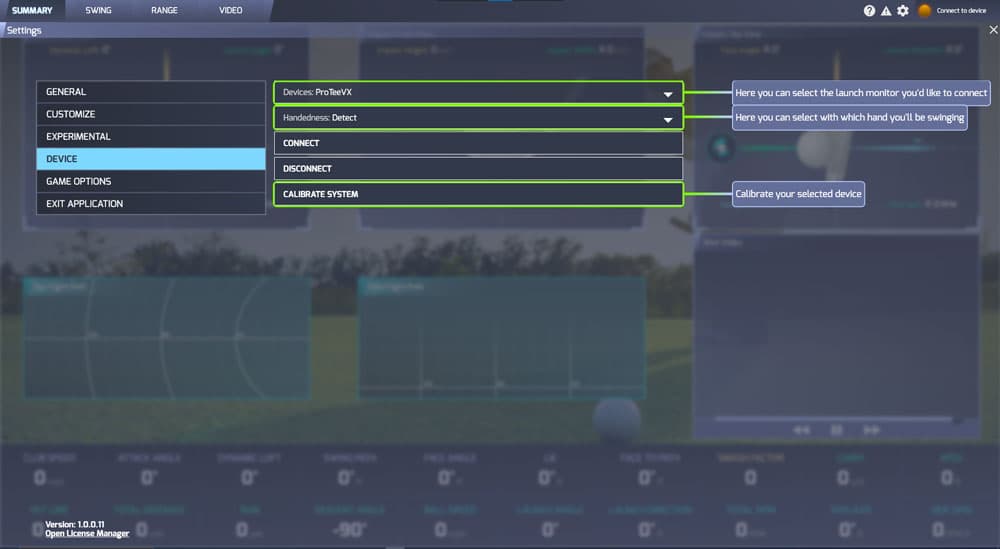
  2. 2Official setup screenshot

    Confirm device connection

    Use the ProTee Labs device connection screen to confirm the VX is online before opening the connected simulator.

    Note: A clean connection reduces misreads and missing rows in the simulator export.

    Official ProTee VX setup screenshot showing device connection.
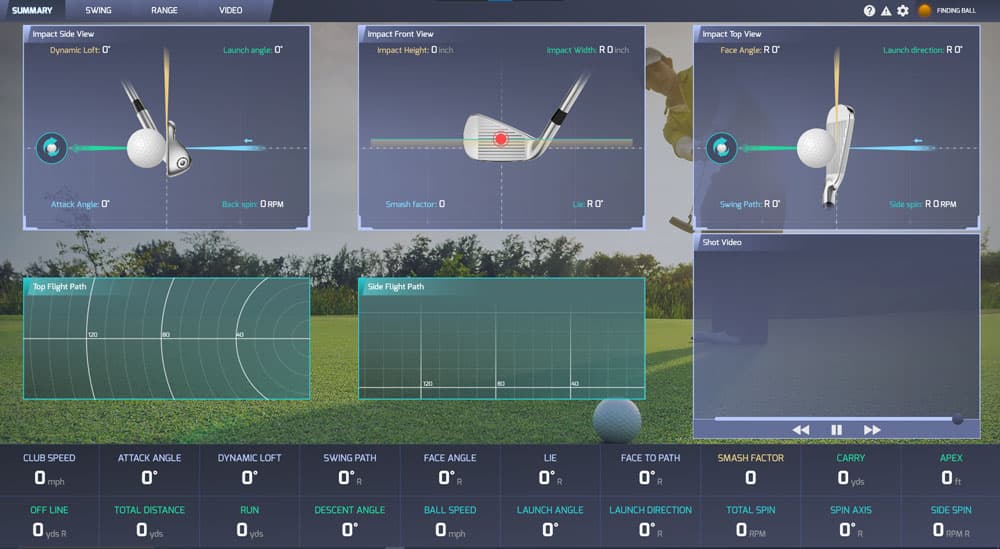
  3. 3Official ready screenshot

    Check ready state

    Finish any required calibration and wait for the ProTee Labs ready state before collecting shots.

    Note: If the setup is not ready, the downstream GSPro file may contain bad rows or missing metrics.

    Official ProTee VX setup screenshot showing ProTee Labs ready state.
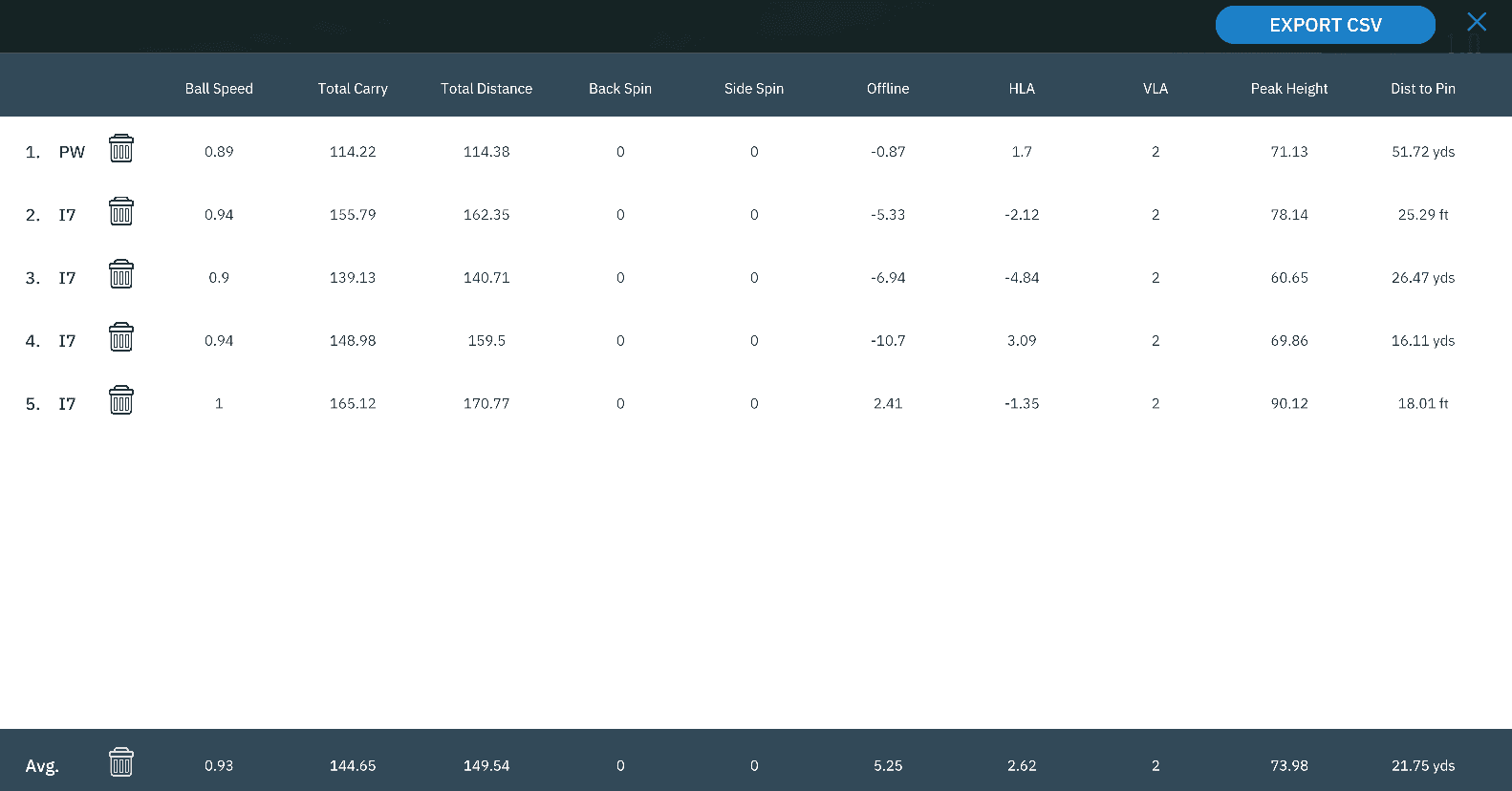
  4. 4Documented bridge: GSPro

    Export in GSPro

    Open GSPro Practice Range, collect the shots, click the clipboard, then click Export CSV.

    Note: ProTee support says ProTee Labs does not store shot data locally for Excel export, so GSPro is the documented CSV path.

    Official GSPro screenshot showing Export CSV from the shot data table.
  5. 5Next click: DivotData upload box

    Upload to DivotData

    Return to DivotData, choose GSPro if the CSV headers are GSPro formatted, then upload the file.

    Note: Keep launch monitor details in the filename or note so the card can preserve source context.

    No fixed screenshot

    This screen can vary by device, operating system, or account state. Follow the note and choose the option that produces a CSV or other shot-level table file.

Official sources: ProTee VX setup, ProTee export limitation, GSPro Practice Range CSV. Labels and DivotData notes are written for the upload-to-card workflow.

Expected metrics

Metrics DivotData looks for in ProTee files.

ClubCarryTotal distanceOffline or deviationLaunch angleSpin rateBall speedClub speedSmash factorLaunch directionCurveClub pathFace angleFace to pathAttack angle

Data quality tips

  • Use the GSPro source guide if the CSV headers are GSPro formatted.
  • Keep launch direction, spin axis, club path, face data, and impact point columns when present.

What this cannot prove alone

  • ProTee support states ProTee Labs does not currently offer an API and shot data is not stored locally for Excel export.
  • Use a connected simulator export, especially GSPro, for DivotData-ready rows.
  • Launch-monitor data can detect patterns, but exact swing mechanics still need richer context, strike data, or coach review.

Sample proof

The upload is only useful if it becomes a focused card.

A Divot Card should show pattern detected, evidence, confidence, likely focus, what not to chase, the practice block, and a matched retest protocol.

Sample Divot Card

Low-right / low-fade pattern

Open

Today's focus

18-minute 8-Iron Reset

A short block that narrows start line first, then checks face control, then checks strike/low point.

18 min
Club8-iron
PatternLow-right fade
ConfidenceMedium · 64/100

Start with

Start-line gate

Start the ball through a narrow target window before judging curve.

Why this card

Data quality

82/100

good beta file

Sample

20 shots

Matched stock 8-irons

Coach-style note

The ball-flight pattern is clear enough to practice, but the exact mechanical cause should stay a hypothesis until a coach or impact evidence validates it.

Get your first card free

Demo card. Launch-monitor data can identify patterns and confidence levels, but it does not prove exact swing mechanics by itself.